Family safety
Location Tracking for Kids: A Parent's Guide for Android and iPhone
How to set up location tracking for kids on Android and iPhone: what age to start, which settings keep it working, school alerts, and how to talk about it.
By NextLocator Team Updated 3 minute read
Quick answer
Install a family locator app on your child's phone, join them to your family circle, and allow location all the time. On iPhone, set the app's location to Always with Precise Location on. On Android, choose Allow all the time and turn off battery optimization for the app. Then save school and home as places so you get an alert when they arrive, and explain to your child why you're doing it.
Key takeaways
- Tell your child. Secret tracking breaks trust when they find out, and they will.
- Arrival alerts for school and home cover most worries without constant checking.
- The right phone settings decide whether tracking keeps working.
- Give older kids more privacy as they earn it.
What makes sense at each age
| Age | Typical setup |
|---|---|
| Under 8 | Usually with an adult. A phone often isn't needed yet. |
| 8 to 12 | First phone. Live location plus arrival alerts for school, home and tuition. |
| 13 to 15 | Arrival alerts and SOS. Agree when parents will look at the map. |
| 16 and over | Mostly SOS and late-night trips. Their choice more often than not. |
For teenagers, the conversation matters as much as the app. How to talk to your teen about location sharing.
Setting it up on your child's iPhone
- Open Settings → Privacy & Security → Location Services and make sure it's on.
- Find the family app in the list and choose Always.
- Turn on Precise Location in the same screen.
- Go to Settings → General → Background App Refresh and make sure it's on for the app.
- Optional: in Screen Time → Content & Privacy Restrictions → Location Services, choose Don't Allow Changes so settings aren't switched off by accident.
Low Power Mode slows background updates, so the map may lag while it's on. NextLocator for iPhone is coming to the App Store; Android families can start on Google Play today.
Setting it up on your child's Android phone
- Open Settings → Location and turn on Use location.
- Open Settings → Apps → the family app → Permissions → Location and choose Allow all the time. Turn on Use precise location.
- In the app's Battery setting, choose Unrestricted (or turn off battery optimization).
- On Samsung, Xiaomi, Oppo, Vivo and similar phones, also allow the app to run in the background or start automatically.
Location stuck on an old spot? Fixes for location not updating.
Set up school and home alerts
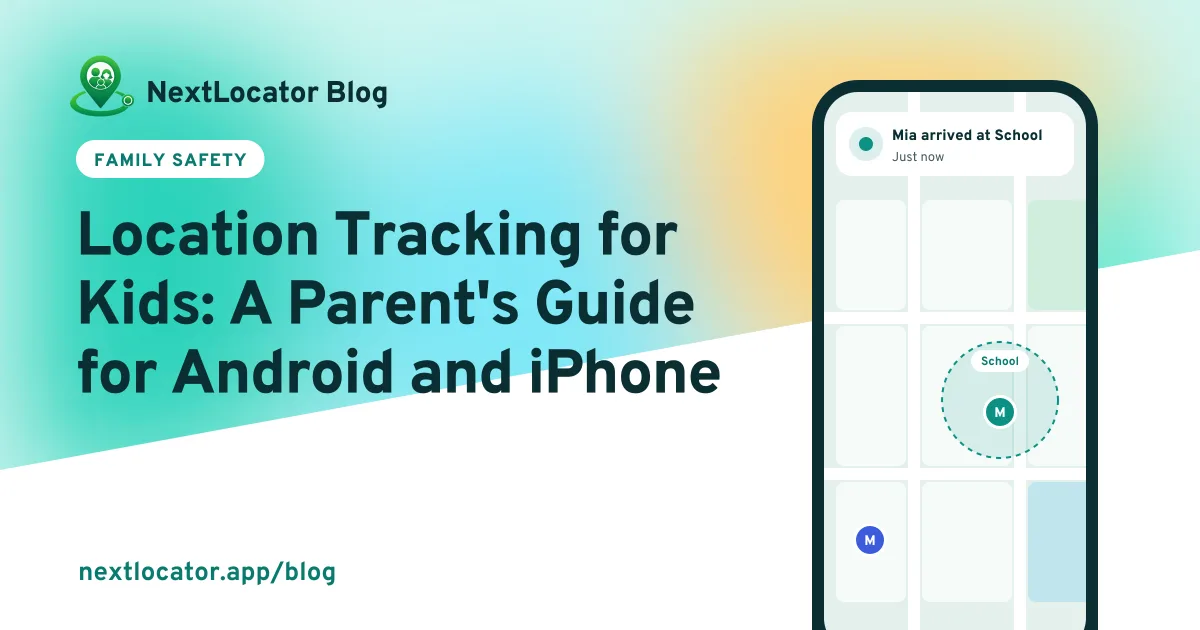
This is the part that gives you peace of mind. Save School, Home and maybe Tuition as places. When your child arrives or leaves, circle admins get a notification. No calls, no checking the map every ten minutes.
NextLocator's free plan includes 2 places, enough for home and school. Full guide to school arrival alerts.
Keep their trust
- Explain why. 'So I know you got there safe,' not 'so I can watch you'.
- Show them the circle. They can see you too.
- Agree on rules. For example, parents check the map only if an alert is late.
- Teach SOS. Show them how to hold the SOS button so it's second nature. How SOS works.
Frequently asked questions
What is the best way to track my child's location?
A family locator app on their phone, with location set to always, plus arrival alerts for school and home. It works without you checking the map.
How do I track my child's iPhone from an Android phone?
Use a cross-platform family app. You both install it, your child joins your circle, and their location shows on your map whatever phone each of you has.
Should I track my child without telling them?
No. Children usually find out, and it damages trust. Tracking that everyone knows about works better and teaches them how to stay safe.
What if my child turns off location?
The app shows when their location was last updated. Talk about it rather than punishing. On iPhone, Screen Time can stop location settings being changed.