How-to
How to Share Your Location With Family on Android and iPhone
Three ways to share your location with family: Google Maps, Apple Find My, and a family locator app like NextLocator. Steps, differences and how to choose.
By NextLocator Team Updated 4 minute read
Quick answer
On Android or iPhone, open Google Maps, tap your profile picture, choose Location sharing and pick the people to share with. On iPhone you can also use the Find My app. For a whole family on a mix of phones, with saved places, arrival alerts and SOS, use a family locator app such as NextLocator.
Key takeaways
- Google Maps location sharing is free and works on both Android and iPhone.
- Apple's Find My only works between Apple devices.
- A family locator app is built around a whole family group, with shared places, SOS and location history.
- Whichever you use, agree on it together as a family first.
Option 1: Share your location with Google Maps
Google Maps is already on most Android phones and can be installed on iPhone. It's a quick way to share with one or two people.
- Open Google Maps and tap your profile picture.
- Tap Location sharing, then Share location.
- Choose how long to share for, or until you turn it off.
- Pick the people to share with and tap Share.
The people you choose can see your location in their own Google Maps app. Menu names can change slightly between app versions.
Option 2: Share your location with Find My on iPhone
If everyone in your family uses an iPhone, Find My is built in.
- Open the Find My app.
- Go to People.
- Tap the add button and choose Share My Location.
- Enter the name or number of the family member and choose how long to share.
Find My doesn't work with Android phones, which rules it out for many families in Bangladesh, where Android is far more common.
Option 3: Share your location with a family locator app
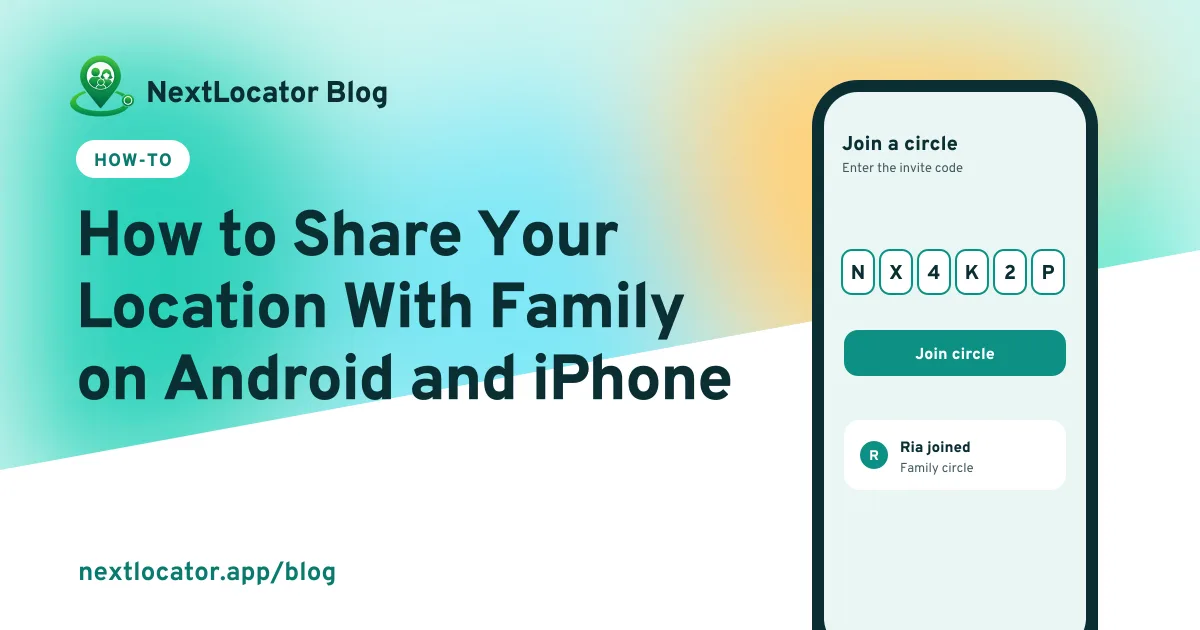
A family locator app is designed for a group, not just two people. With NextLocator, one person sets up the circle and everyone else joins it:
- Install NextLocator and sign in with your phone number, Google account or Apple ID.
- Allow location all the time on Android, or Always on iPhone.
- Tap Create a circle and give it a name, such as Family.
- Tap Share invite code and send the 6-character code to your family.
- Each family member installs NextLocator, taps Join a circle, and scans the QR code or enters the code.
Then save places such as home and school to get arrival and leave alerts. The full setup guide covers each step with screenshots of what you'll see.
Which option should you choose?
| Google Maps | Find My | NextLocator | |
|---|---|---|---|
| Works on | Android and iPhone | Apple devices only | Android and iPhone |
| Built for | Sharing with people you choose | Apple users and devices | A whole family circle |
| Family features | Share with chosen people | Share with chosen people | Saved places, arrival and leave alerts, SOS and history for the whole circle |
| Cost | Free | Free | Free plan, paid plans for larger circles |
Use Google Maps or Find My for a quick share with one person. Use a family locator app when you want the whole family in one place, with alerts for the places that matter and a way to ask everyone for help at once. See all NextLocator features.
Before you share: talk about it
Location sharing works best when everyone knows who can see their location and why. Agree on a few things together:
- Who is in the circle, and who isn't.
- What location will be used for, such as knowing children reached school.
- What happens when someone wants some privacy, especially older teenagers.
Read our guide on consent and family location sharing.
Why can't I share my location with my family?
If sharing isn't working, check these in order:
- Location is turned on in the phone's settings.
- The app has location permission, set to all the time or Always.
- The phone has mobile data or Wi-Fi.
- Battery saver or battery optimization isn't stopping the app in the background.
- The phone's date and time are set to automatic. A clock set far ahead can make location updates look invalid.
Frequently asked questions
Is there a free app to share location with family?
Yes. Google Maps location sharing and Apple Find My are free, and NextLocator has a free plan with the live family map, arrival and leave alerts and SOS.
Can Android and iPhone users share location with each other?
Yes. Google Maps location sharing works on both, and NextLocator runs on Android and iPhone in the same family circle. Apple Find My only works between Apple devices.
Is it normal to share location with family?
Many families share location for everyday coordination and safety, such as knowing that children reached school. It works best when everyone agrees, knows who can see their location, and can talk about how it's used.
How do I stop sharing my location with family in NextLocator?
Leave the circle, and you stop sharing your location with its members. A circle admin can't leave their own circle; they delete it or make someone else admin first.