How to use NextLocator
Install NextLocator, allow location access all the time, create a circle and invite your family with its 6-character code. Then save places like Home and School to get arrival and leave alerts.
Before you start
-
An Android phone or iPhone for each person in the circle.
-
A phone number, Google account or Apple ID to sign in.
-
Mobile data or Wi-Fi, so locations can reach your family.
-
A chat with your family about why you're sharing location.
Set up NextLocator in 6 steps
-
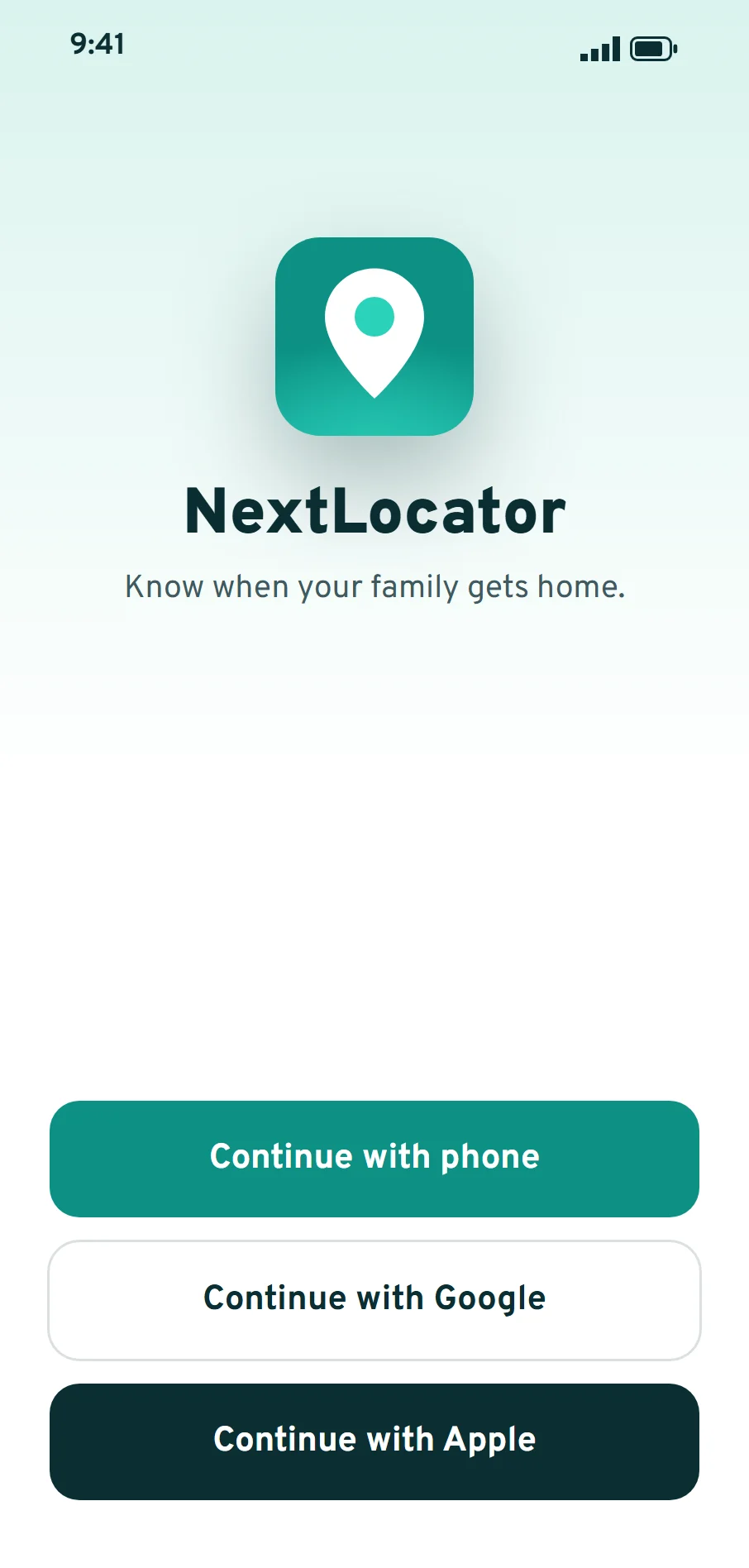
Install NextLocator and sign in
Install NextLocator and sign in with your phone number, your Google account or your Apple ID. If you use your phone number, enter the code we send you by SMS.
Get NextLocator on Google Play.
-
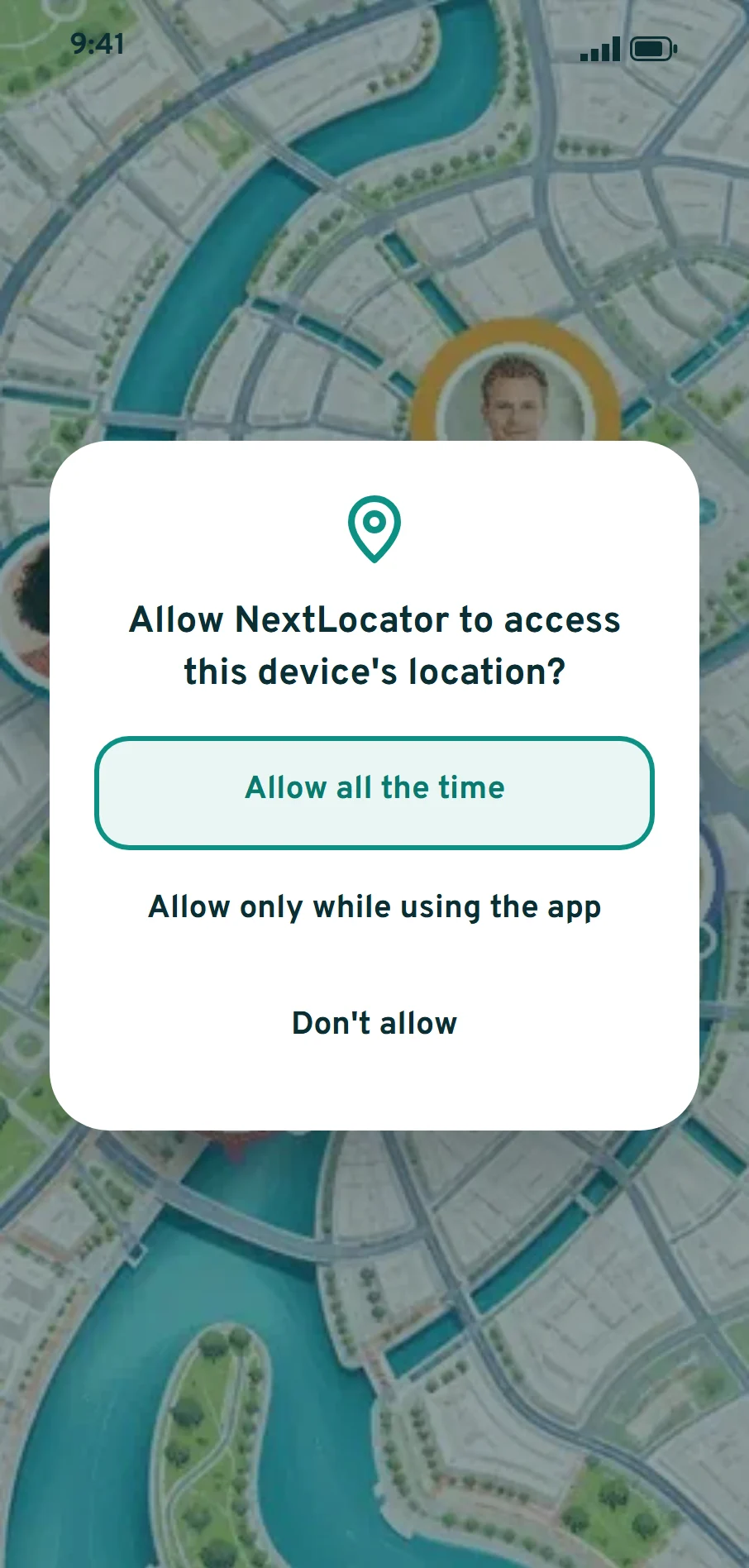
Allow location, motion and notifications
NextLocator needs these so your family can see you while the app runs in the background, and so you receive alerts.
- Location: choose Allow all the time on Android, or Always on iPhone.
- Physical activity or motion: lets NextLocator tell walking from driving, and check location less often when you're still.
- Notifications: needed for arrival, leave and SOS alerts.
- Battery: when your phone asks, let NextLocator keep location updates running.
-
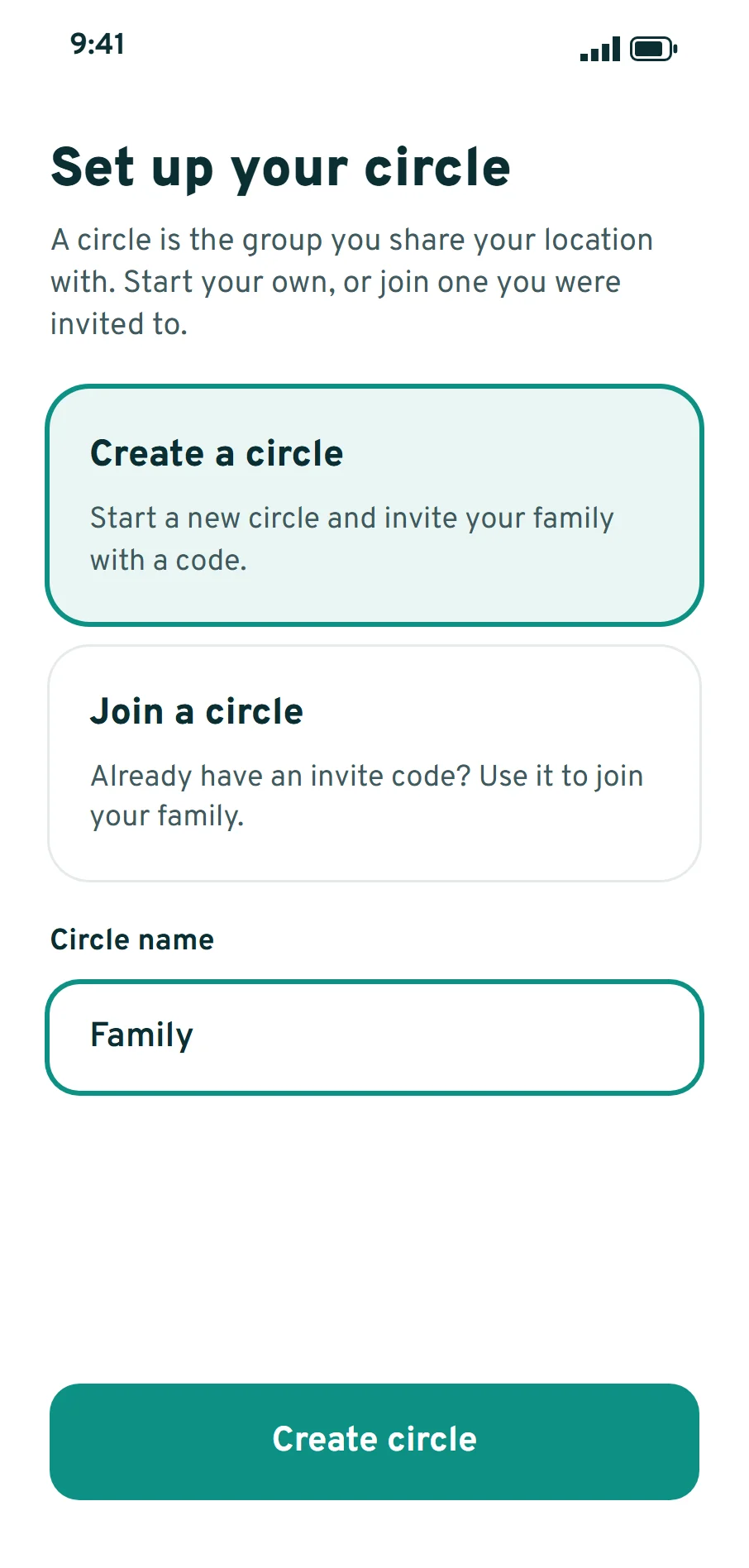
Create your family circle
A circle is the group you share your location with. Tap Create a circle, give it a name such as Family, and tap Create circle. Only people you invite can see it.
Already invited to someone's circle? Skip to step 4 and join theirs instead.
-
Invite your family
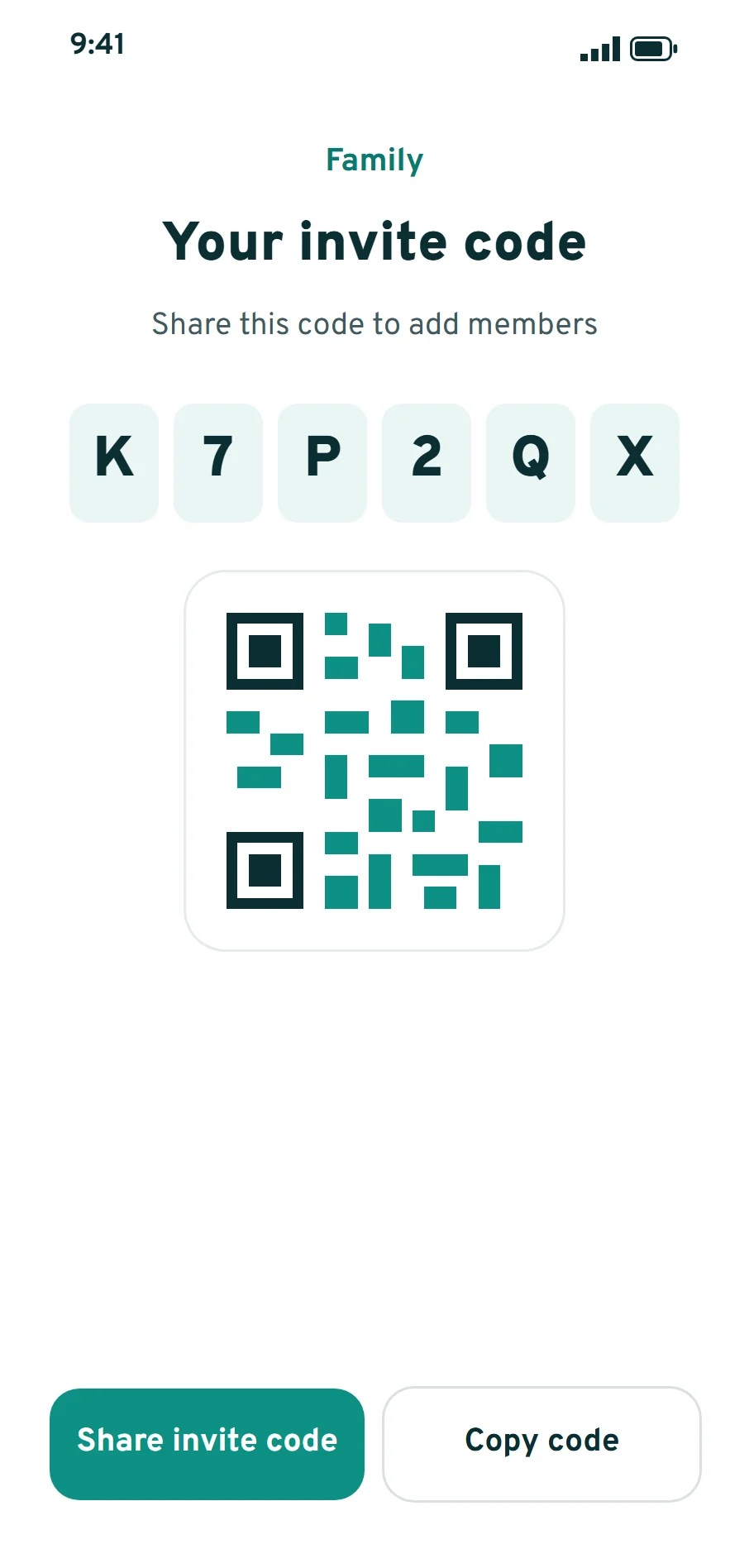
Open your circle and tap Share invite code to send the 6-character code, or show its QR code. Then each family member:
- Installs NextLocator and signs in.
- Taps Join a circle.
- Taps Scan QR code, or enters the 6-character code by hand.
- Taps Join circle.
-
Save your places
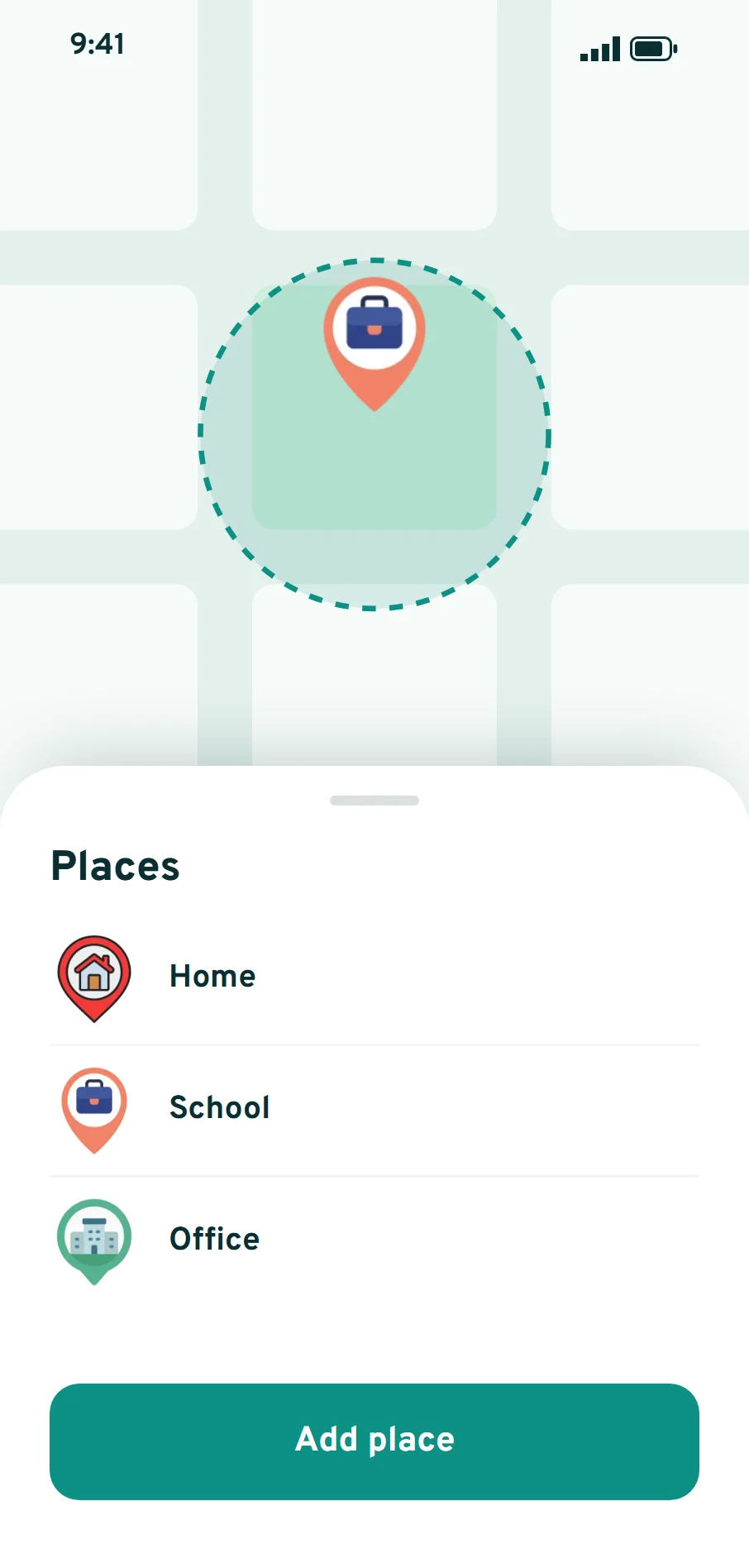
Open Places and tap Add place. Pick the spot on the map, name it, choose an icon and set the radius, then save it. Circle admins get a notification when a member arrives or leaves, and everyone in the circle can see it in the app.
Start with the places your family goes every day: home, school, coaching and the office. Make the radius large enough to cover the whole building and its gate. How many places you can save depends on your plan.
-
Use the live map, SOS and history
- See your family: tap a member on the map to see where they are, how they're moving and their battery level.
- Send an SOS: hold the SOS button, or tap it repeatedly, until the ring fills. Everyone in your circle gets your exact location.
- Ask for a fresh location: when someone's location is out of date, ask their phone to send a new one.
- Look back: open History to see the routes your family took.
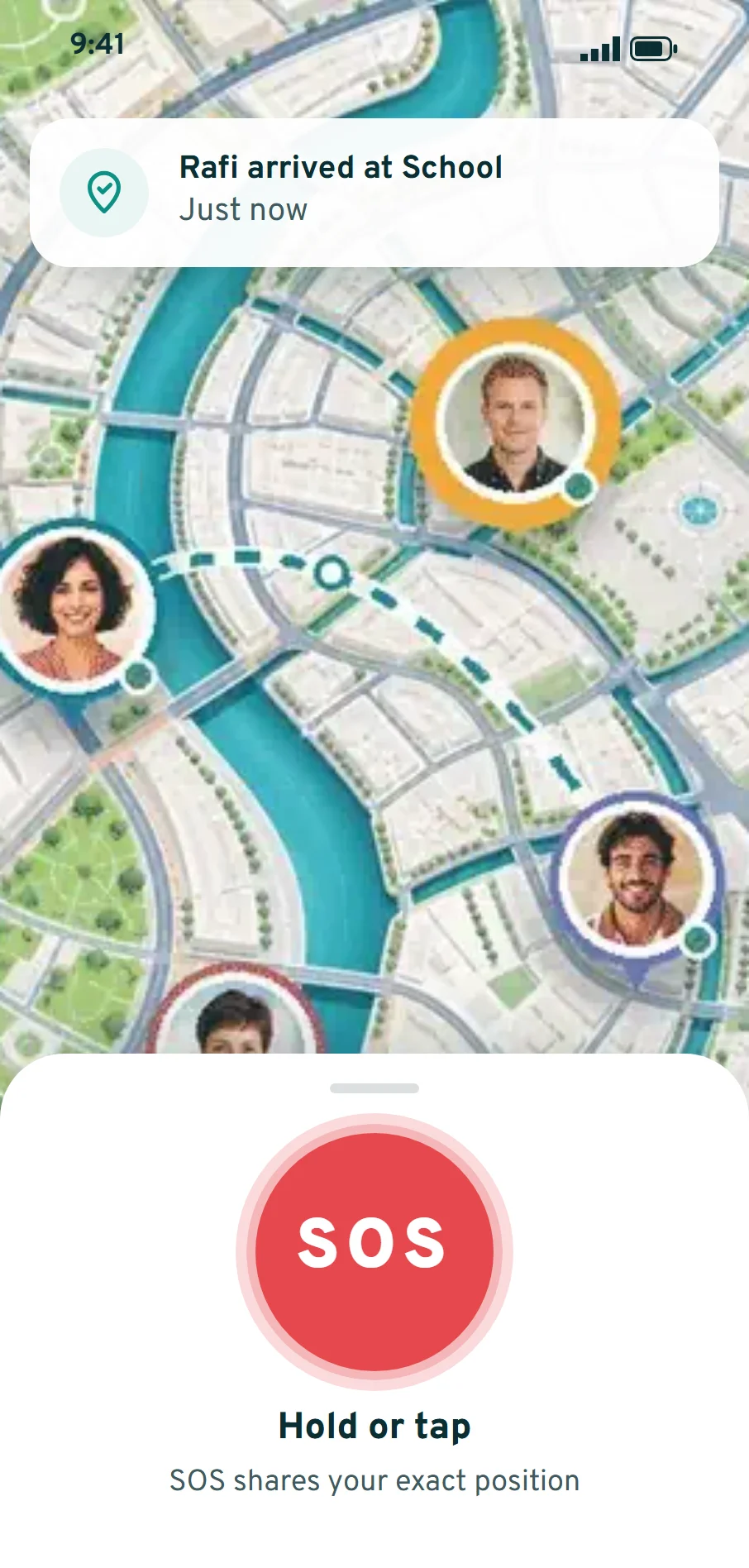
SOS alerts your family, not emergency services. If you or someone else is in danger in Bangladesh, call 999.
Troubleshooting
Most problems come from the phone limiting apps in the background. Start here.
Why isn't my location updating in NextLocator?
Location usually stops updating because the phone restricts the app in the background. Allow location all the time on Android or Always on iPhone, turn off battery optimization for NextLocator, keep mobile data or Wi-Fi on, set the date and time to automatic, and don't force-stop the app.
Where to find background settings on popular Android phones
Menu names change between phone models and Android versions.
- Xiaomi, Redmi and POCO: turn on Autostart for NextLocator, and set its battery saver to No restrictions.
- Samsung: in Battery settings, add NextLocator to Never sleeping apps.
- Oppo and Realme: allow background activity and auto-launch for NextLocator.
- Vivo: allow high background power consumption for NextLocator.
Why am I not getting arrival or leave alerts?
Arrival and leave notifications go to circle admins, so ask your circle's admin to make you an admin if you need them. Also check that NextLocator is allowed to send notifications, that the family member's location is updating, and that their phone has an internet connection. If alerts are late or missed near the edge of a place, make the place's radius larger.
Why doesn't my invite code work?
Make sure you enter all 6 characters of the code from the right circle. The code also won't work if the circle already has as many members as its plan allows, or if you've joined as many circles as your own plan allows.
Why didn't my SOS send?
NextLocator doesn't send an SOS when it can't find your location. Check that location is turned on and try again. If you are in danger, call 999 in Bangladesh straight away.
Still stuck? Report a problem and we'll help.